

Imagine you’re in the heat of a gaming session, and suddenly, your frame rates plummet as your CPU and GPU throttle down due to overheating. This common scenario can turn an engaging experience into frustration. Understanding how thermal throttling impacts performance is essential for anyone looking to optimize their system. What causes this issue, and how can you prevent it from ruining your gameplay? Let’s explore the intricacies of thermal throttling and its effects on frame rates.
What Is Thermal Throttling?
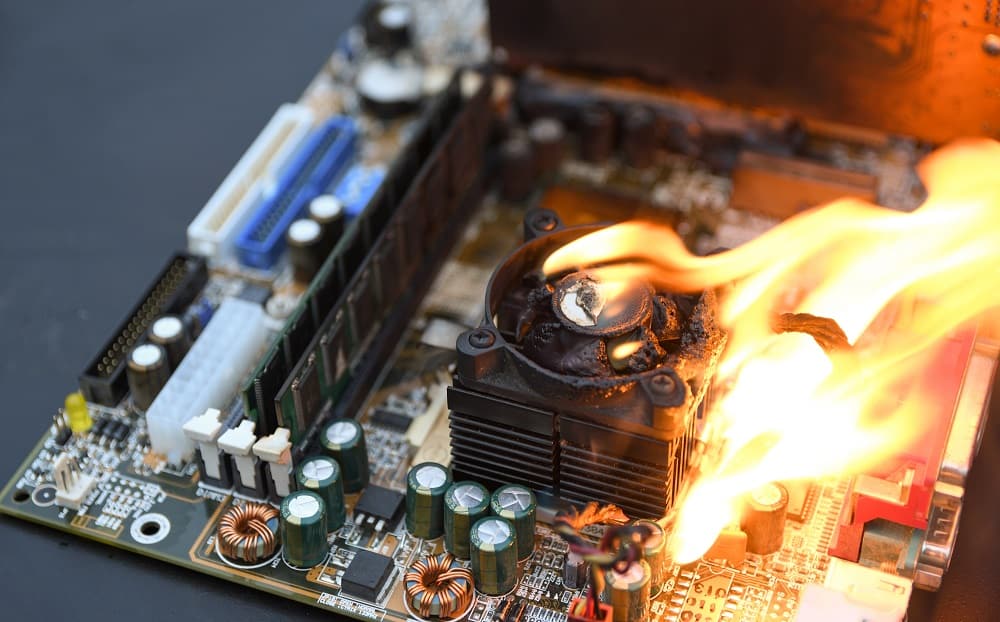
Thermal throttling is an essential safety mechanism that kicks in when your CPU or GPU hits its maximum safe operating temperature. When this happens, the system automatically reduces power draw by lowering clock speeds, which helps cool down the components.
This measure prevents overheating and potential damage to your internal electronics. Modern designs offer sophisticated throttling methods, allowing for more nuanced adjustments that minimize performance drops.
It’s not just CPUs and GPUs that can experience this; SSDs can also thermally throttle, affecting storage performance.
How Thermal Throttling Impacts Frame Rates
When your CPU or GPU reaches its thermal limits, frame rates can take a significant hit, affecting your gaming experience. This performance drop occurs because the system slows down to prevent overheating, resulting in lower clock speeds. You might notice choppy gameplay or sudden frame drops, especially during intense gaming sessions. If your cooling solutions aren’t adequate, the impact can be even more pronounced, leading to frustrating moments where your game stalls or lags. In extreme cases, you may even face crashes or unexpected restarts. To mitigate these issues, it’s essential to monitor your CPU usage patterns to identify potential overheating problems early. To maintain smooth frame rates, it’s vital to guarantee your components are well-cooled and properly maintained. Regular cleaning of airflow and cooling solutions can help ensure that your system remains efficient and stable, allowing you to enjoy a more immersive gaming experience without worrying about thermal throttling.
Signs of Thermal Throttling in CPUs
Recognizing the signs of thermal throttling in your CPU is essential for maintaining peak performance during gaming or demanding tasks.
You might notice sudden drops in frame rates or stuttering during gameplay; these can indicate that your CPU is struggling to keep up. Monitoring tools like Intel’s XTU or AMD’s Ryzen Master can reveal drops in clock speeds and rising temperatures, confirming throttling.
If your CPU consistently runs hotter than 85 degrees Celsius, it’s likely throttling to prevent damage. Additionally, if you experience unexpected system crashes or slowdowns, it could be a sign. Regularly checking these metrics helps you catch thermal issues early, allowing you to take steps to maintain ideal performance and prolong your hardware’s lifespan. Consider implementing regular maintenance practices to enhance cooling efficiency and prevent overheating.
Identifying Thermal Throttling in GPUs
To guarantee your gaming experience remains smooth and enjoyable, it’s crucial to identify signs of thermal throttling in your GPU.
Start by monitoring the GPU temperature using the Performance tab in Task Manager or third-party applications like HWInfo, GPU-Z, or MSI Afterburner. Look for consistent performance drops during gaming sessions; if your frame rates suddenly decrease, it might signal thermal throttling.
Pay attention to any instability in graphics output, as this can also indicate overheating issues. Additionally, many monitoring tools provide explicit thermal throttling alerts. Monitoring GPU temperatures regularly helps ascertain your GPU operates within safe temperature limits, allowing you to address potential issues before they impact your gaming performance.
Causes of Thermal Throttling
Thermal throttling can occur for several reasons, often linked to inadequate cooling or excessive workload. Understanding these causes can help you mitigate the issue.
Here are three common culprits:
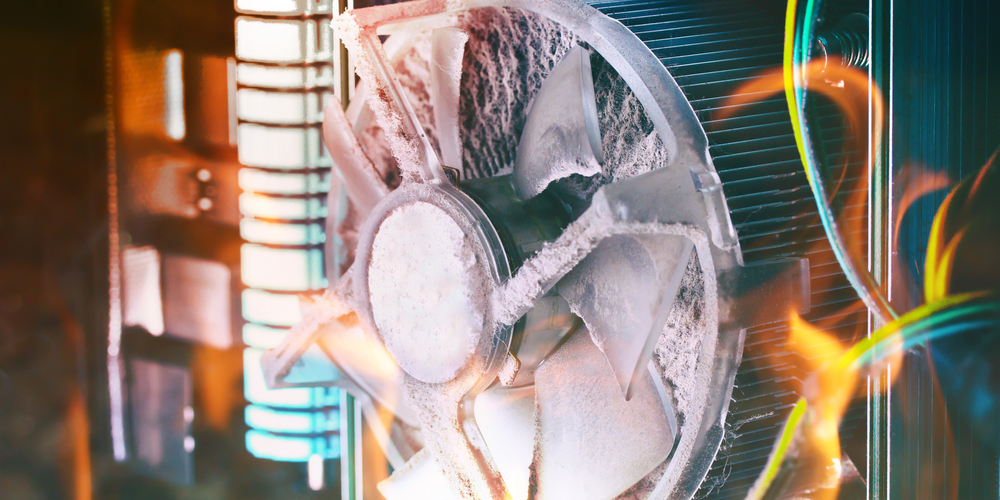
- Poor airflow: Dust accumulation or obstructed vents can restrict airflow, causing components to overheat.
- Heavy workloads: Running demanding applications like games or video editing software can push your CPU and GPU to their limits, generating excess heat.
- Inadequate cooling solutions: Stock coolers may not efficiently dissipate heat, especially when overclocking or under heavy loads.
Preventing Thermal Throttling
Understanding the causes of thermal throttling sets the stage for implementing effective prevention strategies.
First, guarantee your system has adequate cooling. Invest in a quality cooler that matches your CPU’s Thermal Design Power (TDP). Check reviews to find effective cooling solutions for your graphics card as well. Additionally, consider utilizing Throttlestop to manage CPU voltages and reduce heat generation.
Regularly replace thermal paste and keep your system clean to enhance heat dissipation. If thermal throttling persists, consider undervolting or underclocking your components to reduce heat output. Additionally, maintain good airflow within your case by organizing cables and removing dust buildup. Windows 11 systems with higher RAM requirements may generate more heat, necessitating better cooling solutions.
Monitoring Tools for Temperature and Performance
To keep your system running smoothly, it’s essential to use temperature monitoring software that tracks both CPU and GPU performance in real-time. These tools provide throttling alerts and indicators, helping you catch potential issues before they impact your gaming experience. Regularly monitoring CPU usage can prevent overheating and ensure optimal performance during gameplay. Additionally, understanding CPU overusage can help you identify when your system is under excessive strain, leading to better management of resources and improved gaming performance.
Temperature Monitoring Software
When it comes to maintaining ideal performance in your gaming rig, having the right temperature monitoring software is essential. These tools help you keep an eye on your CPU and GPU temperatures, ensuring you avoid thermal throttling. Consider these three key benefits:
- Real-Time Monitoring: Track temperatures as you play, allowing immediate adjustments to prevent overheating and resource overload.
- Performance Alerts: Receive notifications if temperatures approach critical levels, preventing crashes.
- Data Logging: Analyze historical data to understand temperature trends and enhance cooling solutions.
Using software like HWInfo, MSI Afterburner, or Intel’s XTU can make a significant difference. Additionally, ensuring your system has adequate RAM capacity can help maintain performance by allowing more data to be processed without delay.
Real-Time Performance Tracking
Effective real-time performance tracking is essential for gamers who want to maintain ideal system performance and avoid the pitfalls of thermal throttling.
By using monitoring tools like HWInfo, MSI Afterburner, or even built-in utilities such as Task Manager, you can easily observe your CPU and GPU temperatures along with clock speeds.
These tools provide crucial insights, allowing you to spot potential thermal throttling before it impacts your gaming experience.
For instance, if you notice a significant drop in clock speeds alongside rising temperatures, it’s a clear sign that your system is struggling.
Regularly tracking these metrics not only keeps you informed but also empowers you to take corrective actions, ensuring you enjoy smooth gameplay without interruptions.
Throttling Alerts and Indicators
Monitoring tools play an essential role in identifying thermal throttling, helping you stay ahead of performance issues before they escalate.
Here are three key benefits of using these tools:
- Real-Time Monitoring: Keep an eye on your CPU and GPU temperatures, ensuring they stay within safe limits.
- Performance Alerts: Receive notifications when your system experiences throttling, allowing you to take action before it worsens.
- Detailed Analytics: Analyze historical data to understand how temperature fluctuations correlate with performance drops.
The Role of Cooling Solutions
Although you might be tempted to overlook cooling solutions, they play an essential role in preventing thermal throttling and ensuring peak performance for your CPU and GPU.
Effective cooling systems, whether air or liquid, help maintain ideal temperatures, allowing your components to run at their full potential without dropping performance. A high-quality cooler matched to your CPU’s thermal design power (TDP) can make a significant difference.
Regular maintenance, like cleaning dust and replacing thermal paste, further enhances cooling efficiency. If you’re still facing thermal issues, consider undervolting or underclocking your components.
Long-term Effects of Thermal Throttling on Gaming
When thermal throttling occurs consistently, you might notice persistent performance degradation in your gaming experience.
Over time, this can also impact the longevity of your components, leading to costly replacements.
Understanding these long-term effects is vital for maintaining both performance and hardware health.
Persistent Performance Degradation
As you push your gaming hardware to its limits, persistent thermal throttling can greatly hinder your overall gaming experience over time.
It’s not just about momentary frame drops; prolonged exposure to high temperatures can lead to significant performance degradation.
Here are three key impacts you might notice:
- Reduced Frame Rates: Consistent throttling can mean lower average FPS, affecting your gameplay fluidity.
- Increased Input Lag: Performance dips can cause delays between your inputs and on-screen actions.
- Longer Load Times: Your system may take more time to load games or levels, frustrating your gaming sessions.
Staying aware of these effects can help you maintain peak performance and guarantee you enjoy a smoother gaming experience.
Component Longevity Impacts
While thermal throttling serves as a protective measure for your gaming components, its long-term effects can be detrimental to their longevity. Over time, repeated cycles of overheating and throttling can accelerate wear and tear on your CPU and GPU.
As these components consistently operate at reduced performance levels, their lifespan may be considerably shortened. You might notice that aging hardware struggles to keep up with newer games, leading to increased frustration.
Additionally, thermal throttling can affect other components, like SSDs, causing them to fail prematurely. To guarantee your system lasts, prioritize effective cooling and regular maintenance.
Frequently Asked Questions
Can Thermal Throttling Permanently Damage My CPU or GPU?
Did you know that 70% of CPU and GPU failures stem from overheating? While thermal throttling protects your components, consistent high temperatures can lead to permanent damage. Keep your system cool to avoid long-term issues.
Does Thermal Throttling Affect Battery Life in Laptops?
Yes, thermal throttling can affect battery life in laptops. When components throttle, they reduce power consumption, which might improve battery efficiency temporarily, but frequent throttling may lead to overall performance drops and a less satisfying user experience.
How Does Ambient Temperature Influence Thermal Throttling?
Ambient temperature considerably influences thermal throttling. Higher surroundings can elevate your system’s temperature, making it more likely to throttle. Keeping your environment cool helps maintain ideal performance and prevents unnecessary slowdowns during demanding tasks.
Are There Specific Games More Prone to Causing Thermal Throttling?
Some games, especially graphically intense ones like “Cyberpunk 2077” or “Microsoft Flight Simulator,” can push your hardware to its limits, making thermal throttling more likely. Always monitor temperatures during play to safeguard your system’s performance.
Will Overclocking Exacerbate Thermal Throttling Issues?
Yes, overclocking can exacerbate thermal throttling issues. It increases power draw and heat generation, pushing your CPU or GPU closer to their thermal limits. This can lead to more frequent throttling and reduced overall performance.


