

In computer networking, port forwarding is an essential technique that lets you direct specific internet traffic to designated devices on your local network. By configuring your router to allow incoming connections on particular ports, you can enable external devices to access internal services. This process is important for applications like online gaming and remote access. Understanding how it works and its implications can greatly enhance your network performance and security. What else should you know about this fundamental networking strategy?
Understanding Ports in Networking
When you think about networking, understanding ports is vital for effective data communication between devices. A port acts as a specific endpoint for data transfer, identified by unique numbers ranging from 0 to 65535.
Each service or application typically uses a designated port, such as 20/21 for File Transfer Protocol (FTP) or 22 for Secure Shell (SSH). Data travels through these assigned ports to guarantee it reaches the correct destination.
The Concept of Port Forwarding
Understanding how ports function in networking sets the stage for grasping port forwarding.
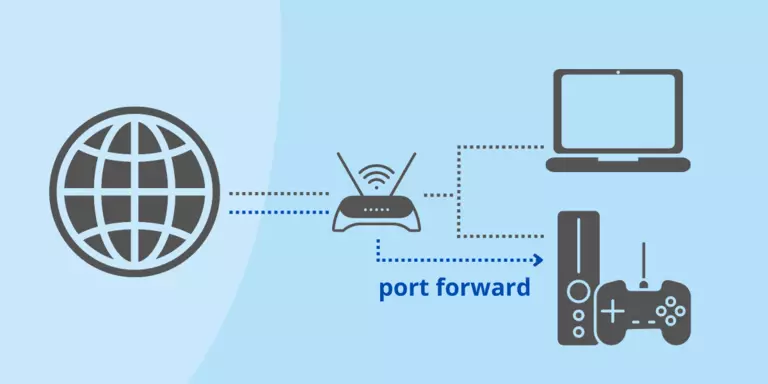
Port forwarding is a technique that directs specific internet traffic to designated devices within a local network. When you connect to the internet, your ISP assigns a dynamic IP address to your modem. Routers manage your internal network using unique addresses, like 192.168.x.x.
However, firewalls in routers can block incoming connections. Port forwarding addresses this limitation by allowing external traffic through specific ports, ensuring that applications such as online games or servers can communicate effectively.
How Port Forwarding Works
When you set up port forwarding, data transmission becomes more efficient by directing specific traffic to designated devices.
You’ll need to evaluate whether your device uses a static or dynamic IP, as this affects how consistently traffic reaches its destination.
Additionally, understanding security implications is vital, since opening ports can expose your network to potential threats.
Data Transmission Process
Port forwarding streamlines the data transmission process by directing specific traffic from the internet to a designated device within your local network.
When a data packet arrives at your router, it checks the destination port number. If that port is configured for forwarding, the router redirects the packet to the internal IP address of your chosen device.
This process allows applications like online gaming, video conferencing, or remote access to function correctly since they rely on uninterrupted data flow.
By creating a specific pathway for this traffic, port forwarding bypasses the router’s firewall restrictions, ensuring that data packets reach their intended destination without unnecessary delays.
Consequently, it enhances connectivity and performance for various applications within your network.
Static Vs Dynamic IPS
Static and dynamic IP addresses play crucial roles in how port forwarding functions within a network. A static IP address remains constant, allowing you to set up port forwarding easily since the address doesn’t change. This consistency is critical for devices like game servers or web servers, ensuring they receive incoming traffic reliably.
On the other hand, a dynamic IP address can change periodically, making it challenging to maintain a stable port forwarding configuration. To manage dynamic IPs, you might use Dynamic DNS (DDNS) services, which map your dynamic address to a fixed domain name.
Ultimately, choosing between static and dynamic IPs depends on your networking needs and how important stable connections are for your applications.
Security Considerations
Understanding how static and dynamic IP addresses impact your network setup leads to important security considerations when implementing port forwarding.
When you open ports for external access, you expose your devices to potential threats. Verify you only forward the necessary ports to minimize risk.
Utilizing port range triggering instead of static port forwarding can enhance security, as it keeps ports closed until a request is made.
Always use strong passwords for your router and devices to prevent unauthorized access. Regularly update your router’s firmware to patch vulnerabilities.
Monitor your network traffic for any unusual activity, as this can signal potential breaches.
Importance of Port Forwarding
A reliable connection is essential for activities like online gaming, remote access, and hosting servers, making port forwarding an important tool for many users.
By enabling specific traffic to bypass router firewalls, you enhance the performance and accessibility of your applications. Here’s why it matters:
- Improved Performance: It reduces latency and packet loss for online gaming.
- Remote Access: You can securely connect to your home network from anywhere.
- Hosting Services: It allows you to host game servers or web applications efficiently.
- Enhanced Security: Properly configured forwarding can protect sensitive data while allowing necessary traffic.
Understanding and implementing port forwarding can greatly enhance your online experience and connectivity.
Types of Port Forwarding
While maneuvering port forwarding, it’s crucial to recognize the different methods available, each serving unique purposes.
You can utilize single port forwarding, which directs traffic through one specific port to a single device, ideal for applications needing a dedicated connection.
Alternatively, port range forwarding allows traffic through a range of ports to that same device, useful for applications requiring multiple ports simultaneously.
Finally, there’s port range triggering, which temporarily opens a range of ports for all devices but keeps them closed until an outbound connection request is made.
Each method caters to distinct networking needs, so understanding their differences guarantees you can implement the most effective solution for your setup.
Step-by-Step Guide to Port Forwarding
To set up port forwarding, you’ll first need to access your router’s interface by entering its local IP address in a web browser.
Next, assign a static IP address to the device that will receive the forwarded traffic, ensuring consistent routing.
Finally, complete the specific port forwarding steps tailored for your application to establish a direct connection.
Accessing Router Interface
How can you access your router’s interface for port forwarding? It’s simple! Just follow these steps:
- Connect your device to the router via Ethernet or Wi-Fi.
- Open a web browser and type your router’s IP address (commonly 192.168.1.1 or 192.168.0.1) in the address bar.
- Enter your router’s admin credentials. If you haven’t changed them, check the router’s manual or the label on the device.
- Once logged in, navigate to the port forwarding section, usually found under “Advanced Settings.”
Configuring Static IP
Once you’re logged into your router’s interface, the next step is configuring a static IP address for the device that will receive the forwarded traffic.
Start by locating the device you want to assign a static IP to, usually found in a network map or connected devices list. Note its current IP address, then navigate to the DHCP settings.
Here, you’ll set a static IP by entering the device’s MAC address and the desired IP address, guaranteeing it’s outside the DHCP range to avoid conflicts.
Save your changes and reboot the router if necessary. This step guarantees your device consistently receives the same IP, making port forwarding straightforward and effective.
Completing Port Forwarding Steps
Completing the port forwarding process involves several critical steps to secure successful configuration. Follow these steps carefully:
- Access your router’s interface: Type your router’s local IP address into your web browser.
- Assign a static IP: Confirm the device receiving the forwarded traffic has a static IP for reliable routing.
- Choose your forwarding method: Decide between single port forwarding, port range forwarding, or port range triggering based on your needs.
- Enter the details: Input the application name, port numbers, and select the appropriate protocol (TCP/UDP) before saving the settings.
Common Protocols Used in Port Forwarding
Understanding common protocols used in port forwarding is fundamental for effective network configuration. The two primary protocols you’ll encounter are Transmission Control Protocol (TCP) and User Datagram Protocol (UDP).
TCP guarantees reliable, connection-based data transfer, making it ideal for applications where data integrity is essential, such as web browsing and email. Conversely, UDP allows for faster, connectionless communication, which is better suited for real-time applications like video streaming and online gaming.
When setting up port forwarding, selecting the correct protocol is imperative, as it impacts data flow. Knowing when to use TCP or UDP can optimize your network’s performance and enhance the functionality of the applications you’re using. Choose wisely based on your specific needs.
Port Forwarding for Gaming Applications
When you’re gaming online, having the right port forwarding setup can greatly enhance your experience by reducing lag and improving connectivity.
To optimize your gaming performance, follow these steps:
- Identify Required Ports: Check the game’s documentation for specific ports needed.
- Access Your Router: Log into your router using its local IP address.
- Assign a Static IP: Guarantee the gaming device has a static IP to maintain consistent routing.
- Configure Port Forwarding: Enter the required ports in the port forwarding section, selecting the correct protocol (TCP/UDP).
Setting Up Port Forwarding for Fortnite
To guarantee a seamless gaming experience in Fortnite, you’ll need to set up port forwarding effectively.
Start by accessing your router’s backend through its local IP address. Assign a static IP address to the device you’re using for Fortnite.
Then, click the “Add a new Port Range Forwarding” button. Enter a name like “Fortnite Range.” For the Start Port, input 5795 and for the End Port, input 5847.
Select “Both” for the protocol to ascertain proper connectivity. Finally, enter the device’s static IP address that you assigned earlier.
This configuration allows Fortnite to communicate with your router without interruption, enhancing your gaming performance and reducing lag.
Port Range Triggering Explained
Port range triggering offers a secure way to manage incoming connections without keeping ports open at all times.
When an outbound request is made from your device, the router temporarily opens the relevant inbound ports, allowing for seamless communication.
This method maximizes security while still enabling multiple devices to benefit from the connection.
Benefits of Port Triggering
While many users opt for traditional port forwarding methods, port range triggering offers notable advantages that enhance security and efficiency.
Here are four key benefits you should consider:
- Dynamic Port Management: Ports remain closed until an outbound connection is initiated, reducing exposure to potential threats.
- No Static IP Required: You won’t need to assign static IPs, simplifying the setup process for multiple devices.
- Temporary Access: Inbound ports open only when needed, ensuring a minimal security footprint.
- Single Client Access: Only one device can access an open port at a time, preventing multiple connections from overwhelming your network.
These benefits make port range triggering a smart choice for maintaining a secure and efficient network environment.
How It Works
Understanding how port range triggering works can help you optimize your network’s security and efficiency. This method temporarily opens a range of ports in response to outbound traffic, allowing inbound connections only when needed.
When your device initiates a connection, the router recognizes this request and opens the designated ports for incoming responses. Unlike static port forwarding, port range triggering keeps ports closed until an application makes a specific request, minimizing security risks.
You don’t need to assign static IPs, making it flexible for multiple devices. However, only one client can utilize an open port at a time, ensuring that your network remains efficient and secure while still providing access to necessary services.
Security Considerations in Port Forwarding
When setting up port forwarding, it’s vital to take into account potential security risks that can arise from exposing your network to the internet.
Here are some key considerations to keep in mind:
- Open Ports: Leaving ports open can invite unwanted traffic and potential intrusions.
- Static IP Vulnerability: Assigning static IPs can make your devices predictable targets for attackers.
- Firewall Configuration: Verify your firewall settings are robust; they should block unnecessary traffic while allowing only specific ports.
- Monitor Traffic: Regularly monitor incoming and outgoing traffic to detect any unusual activity.
Troubleshooting Port Forwarding Issues
Troubleshooting port forwarding issues often involves a systematic approach to identify and resolve common connectivity problems.
First, check your router’s settings to verify the static IP address for your device is correctly configured. Verify that the correct external and internal port numbers are entered and that the chosen protocol (TCP/UDP) matches your application’s requirements.
Next, confirm that your router’s firewall isn’t blocking the designated ports. Additionally, ascertain your ISP isn’t restricting the ports you’re trying to forward. You can use online tools to test if the ports are open.
If all else fails, reboot your router and device, as this can often resolve lingering issues. Remember, patience and methodical checks are key to successful troubleshooting.
Frequently Asked Questions
Can Port Forwarding Improve My Internet Speed?
Studies show that effective port forwarding can enhance gaming experiences by reducing latency by up to 30%. It optimizes your connection, allowing for smoother gameplay and improved performance, especially in online multiplayer environments.
How Does Port Forwarding Affect Network Security?
Port forwarding can expose your network to security risks by opening specific ports. If not configured correctly, it allows unauthorized access, making it essential to implement strong security measures to protect your devices and data.
Is Port Forwarding Necessary for All Online Games?
Port forwarding isn’t necessary for all online games. It primarily benefits games requiring direct connections or hosting, improving performance and reducing latency. Check each game’s requirements to determine if port forwarding’s needed for ideal gameplay.
What Devices Can Benefit From Port Forwarding?
You can benefit from port forwarding on devices like gaming consoles, PCs, and servers. It optimizes connections for online gaming, enhances performance for applications, and allows remote access to home servers or devices.
Can I Port Forward Without a Static IP Address?
Yes, you can port forward without a static IP address using port range triggering. This method keeps ports closed until needed, allowing temporary access without requiring a static assignment for your device.


