

Imagine your screen going dark in the middle of an intense gaming session or a vital work deadline. It’s frustrating, isn’t it? You might not realize it, but several common GPU problems could be lurking beneath the surface. From black screens to overheating, these issues can disrupt your experience and impact performance. Understanding these challenges can help you maintain your system’s efficiency and longevity. Let’s explore these problems and how to tackle them effectively.
Black Screen Issues
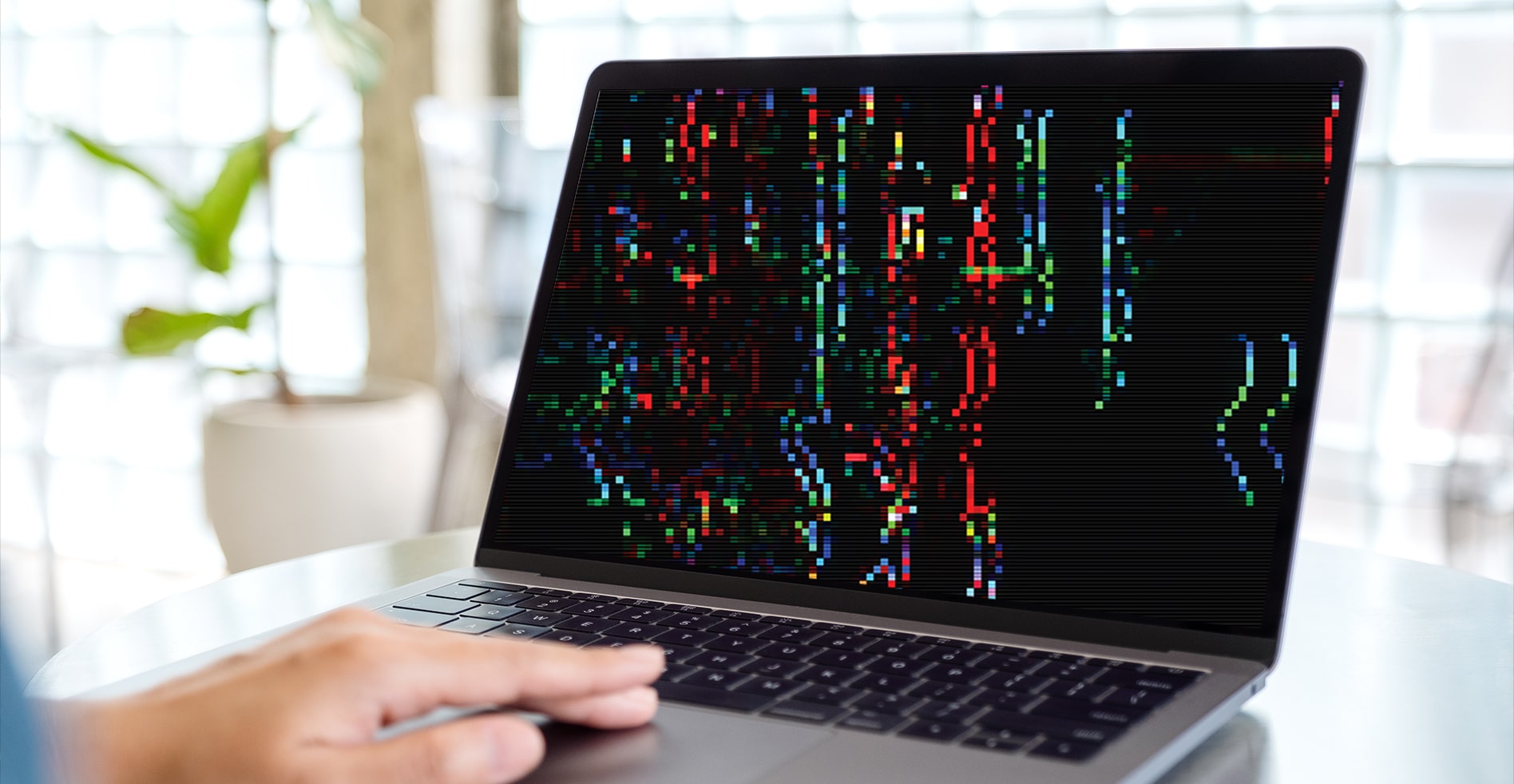
When your screen goes black, it can be frustrating and confusing, especially if you’re not sure what’s causing it.
First, try restarting your graphics driver by pressing Windows Key + Ctrl + Shift + B. If that doesn’t work, power cycle your PC and monitor; simple resets often fix temporary glitches. Additionally, system overloads can lead to performance issues that may result in a black screen.
Test different video outputs by switching between HDMI and DisplayPort to pinpoint the issue. Reseat the graphics card and verify all PCI-Express power connectors are secure.
If you’re still facing problems, check for any loose connections or damaged components. Additionally, monitor GPU temperatures as overheating can also lead to black screen issues. These steps can help you identify the root cause of the black screen and potentially restore your display without needing immediate professional assistance.
Visual Artifacts

Visual artifacts can be a troubling sign that your GPU is experiencing issues. You might notice strange squares, lines, or flickering on your screen.
First, try disabling any overclocks, as excessive overclocking can lead to instability. If that doesn’t help, reinstall your graphics drivers, since corrupted or outdated drivers often cause visual problems. It’s also wise to test with a different power supply; inadequate power can lead to artifacts under load. Additionally, regular monitoring of your GPU temperatures is essential, as overheating is a common culprit.
Ensure that you have the latest stable release of the drivers installed, as outdated drivers can contribute to these visual issues. Finally, inspect your graphics card for any physical damage or loose connections to confirm it’s properly seated in the PCI-Express slot. Addressing these factors can help restore your display’s clarity.
Poor Performance

If you’re experiencing poor performance from your GPU, driver corruption could be a key factor. Make sure to check for any background processes that might be consuming your resources, as they can greatly slow down your system. Additionally, high CPU usage caused by inefficient applications can also affect your GPU’s performance. Addressing these issues can lead to a noticeable improvement in your GPU’s efficiency. Additionally, utilizing advanced algorithms can enhance your gaming experience and further boost performance.
Driver Corruption Issues
As you experience poor performance from your GPU, one possible culprit could be driver corruption. Corrupted or outdated drivers can lead to a significant drop in your GPU’s efficiency, causing lag, stuttering, or crashes during gameplay.
To tackle this issue, start by reinstalling your graphics drivers. This process can eliminate any corrupted files and install the latest updates. Make sure to download drivers directly from the manufacturer’s website for the best results. Additionally, ensuring that your GPU is operating within its optimal power consumption limits can help maintain performance stability.
After reinstalling, monitor your GPU’s performance to see if it improves. If the problem persists, consider checking for conflicts with other software or hardware. Regularly updating your drivers can help prevent CPU overusage and restore your GPU’s functionality, enhancing your overall gaming experience.
Background Resource Consumption
After addressing driver corruption, another factor that can greatly affect your GPU’s performance is background resource consumption.
When multiple applications run simultaneously, they can drain your system’s resources, leading to poor GPU performance. You mightn’t even realize how many processes are active in the background. This is especially true if you are experiencing frequent crashes or if your applications are freezing.
To improve performance, check your task manager and identify resource-hogging applications. Close any unnecessary programs while gaming or using graphic-intensive software.
Additionally, consider disabling startup programs that launch automatically; this frees up resources for your GPU.
Regularly monitoring your system can help maintain ideal performance and guarantee your GPU runs smoothly when you need it most. It’s essential to be aware of your idle RAM usage so that you can optimize your system’s performance effectively.
Taking these steps can considerably enhance your overall gaming and computing experience.
Overheating Problems
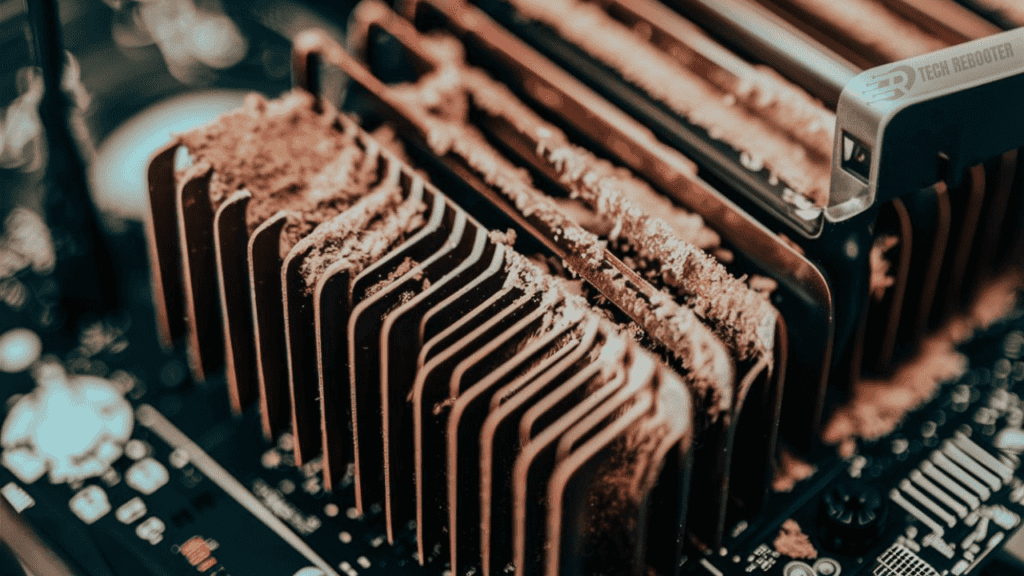
While encountering overheating problems with your GPU, it’s essential to address the issue promptly to avoid long-term damage.
Start by cleaning your PC case to improve airflow; dust can block vents and fans. Monitor your GPU temperatures using software and adjust the fan curve with tools like MSI Afterburner for better cooling performance.
If temperatures remain high, consider adding extra intake and exhaust fans to enhance airflow. Organizing cables can also help, as cluttered wiring may obstruct cooling pathways.
Finally, verify that nearby add-in cards aren’t blocking airflow around the GPU. Taking these steps can greatly reduce overheating and help maintain your GPU’s performance and longevity.
Driver Conflicts

Overheating can sometimes mask underlying issues like driver conflicts, which can greatly impact your GPU’s performance.
Driver conflicts often lead to frustrating experiences that you mightn’t notice until it’s too late. Here are some common signs to watch for:
- Frequent crashes or system freezes
- Inconsistent frame rates during gaming
- Visual glitches or artifacts
- Unresponsive applications or games
- Error messages related to graphics drivers
To address these issues, keep your drivers updated and remove any outdated or conflicting ones.
Regularly check for new driver releases from your GPU manufacturer, and consider using a clean installation method to guarantee everything runs smoothly.
Stay proactive, and your GPU will thank you with better performance!
Power Supply Insufficiency
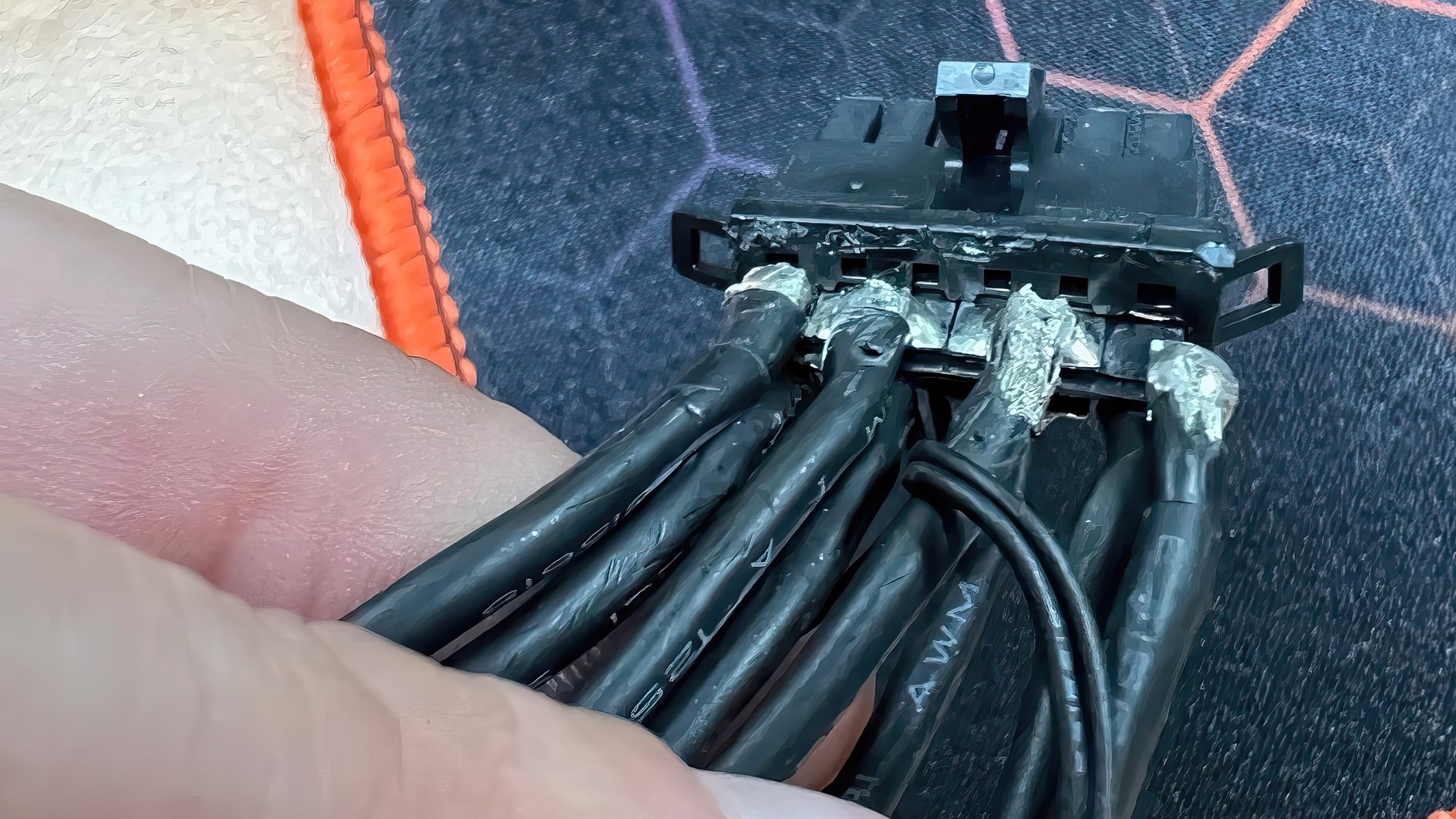
If your GPU’s performance is lagging, power supply insufficiency could be the culprit.
Insufficient wattage can prevent your graphics card from getting the power it needs, leading to instability and crashes.
Additionally, if the voltage isn’t stable, it can cause further problems, affecting overall performance and longevity.
Insufficient Wattage Issues
When your GPU struggles to perform, one possible culprit could be insufficient wattage from your power supply. If your PSU doesn’t provide enough power, your GPU may underperform or crash during demanding tasks.
You might experience:
- Frustrating stutters during gameplay
- Sudden black screens that ruin your gaming session
- Visual artifacts that distract from your experience
- Random shutdowns that leave you in the dark
- A feeling of regret for not checking your power supply
To avoid these issues, verify your PSU meets or exceeds the wattage requirements of your GPU.
Investing in a reliable power supply can make a significant difference in your system’s stability and performance, keeping you immersed in your favorite games without interruptions.
Voltage Stability Concerns
Although you may not realize it, voltage stability is essential for your GPU’s performance. If your power supply isn’t providing consistent voltage, you might experience crashes, visual artifacts, or poor performance.
Insufficient voltage can cause your GPU to underperform or even fail under load. Make sure your power supply has adequate wattage and high-quality components to guarantee stable voltage delivery.
Check all connections and replace any faulty cables. You can also monitor voltage levels using diagnostic software to identify fluctuations.
If you notice instability, consider upgrading to a more reliable power supply. By guaranteeing voltage stability, you’ll enhance your GPU’s longevity and overall performance, allowing you to enjoy a smoother gaming experience.
Hardware Failures
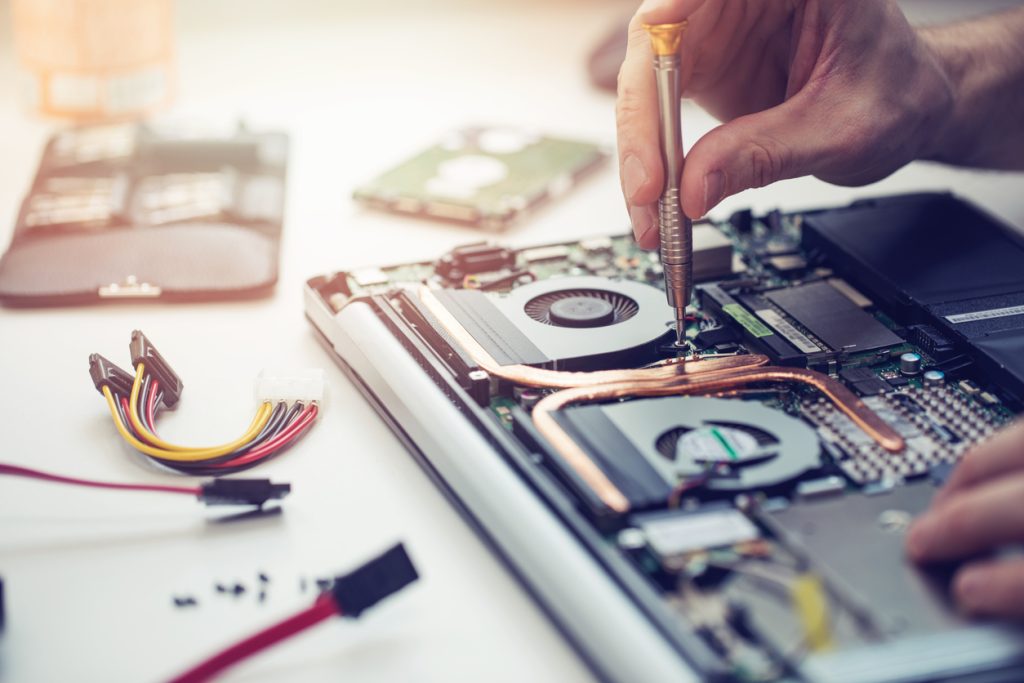
While hardware failures can often seem intimidating, understanding their causes and signs can help you address them effectively.
Hardware issues can arise from various factors, leading to frustrating experiences. Here are some key signs to watch for:
- Visual artifacts appearing on screen
- Unexplained crashes during gaming
- Overheating even under light use
- Loud fan noises indicating distress
- Physical damage like burnt components
When you notice these symptoms, it’s essential to act quickly.
Regular maintenance and monitoring can prevent severe failures, ensuring your GPU runs smoothly. If problems persist, consider professional help or a replacement to avoid further headaches.
Don’t let hardware failures derail your gaming experience—stay informed and proactive!
Frequently Asked Questions
How Can I Tell if My GPU Is Compatible With My Motherboard?
To guarantee your GPU fits like a glove with your motherboard, check the PCI-Express slot type and size. Additionally, verify power requirements and compatibility with your CPU for a seamless performance experience.
What Are the Signs of a Failing Power Supply Affecting the GPU?
You’ll notice signs like random shutdowns, failure to boot, or graphical glitches. If your GPU struggles under load or shows artifacts, it might indicate a failing power supply affecting stability and performance.
Can a Faulty GPU Cause Issues With Other Hardware Components?
A faulty GPU can wreak havoc on your system, causing issues with other components like the motherboard or power supply. It’s essential to diagnose it promptly to prevent further damage. Keep an eye out!
How Do I Clean My GPU Without Damaging It?
To clean your GPU without damaging it, turn off your PC and unplug it. Use compressed air to blow out dust, avoiding direct contact. Gently wipe the card with a microfiber cloth for safe, effective cleaning.
Is It Safe to Overclock My GPU for Better Performance?
Yes, it’s safe to overclock your GPU for better performance, but proceed with caution. Monitor temperatures closely, guarantee adequate cooling, and gradually increase settings to avoid instability or overheating. Always use reliable software for adjustments.


